


iPhone/iPad setup
Install the game on your iPhone or iPad with the installer on your Windows computer: connect the device with a cable, sign in with your Apple ID, and the installer does the rest.
The installer runs on your Windows computer. It downloads the game, signs it with your own Apple ID and installs it on your iPhone or iPad over a cable. You don't need iTunes: if Apple's USB driver is missing, the installer downloads it from Apple and installs it for you.
What you need
- A Windows 10 or 11 computer with an internet connection
- An iPhone or iPad and a USB cable
- An Apple ID (a free account is enough)
- At least 1 GB of free space on the computer
1. Open the installer
Download the installer from the iOS card in the Download section and run it. If Windows shows "Windows protected your PC", press "More info", then "Run anyway". The top of the window shows your device's status; while no phone is connected, "No iPhone found" is normal.
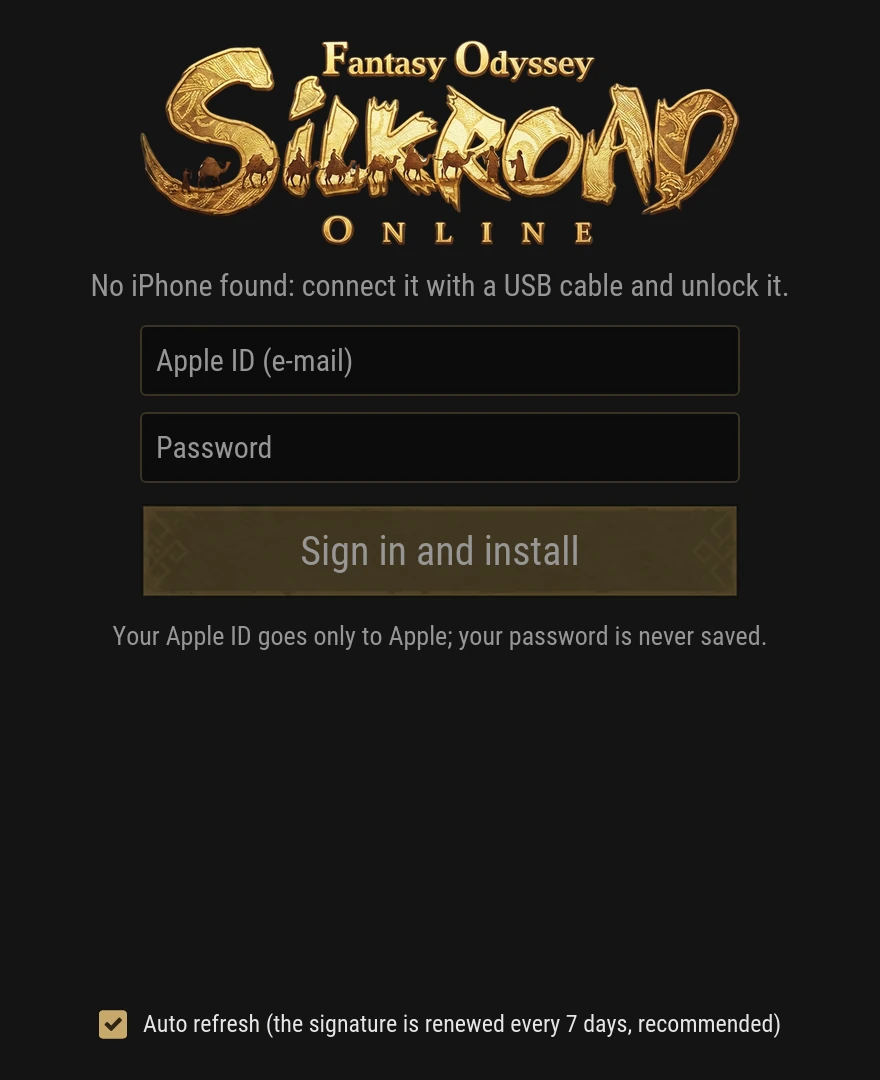
If Apple's USB driver is missing on the computer, the first line says "Apple's USB driver is missing" instead. That's normal: the installer downloads it from Apple and installs it in step 3, when you press the button.
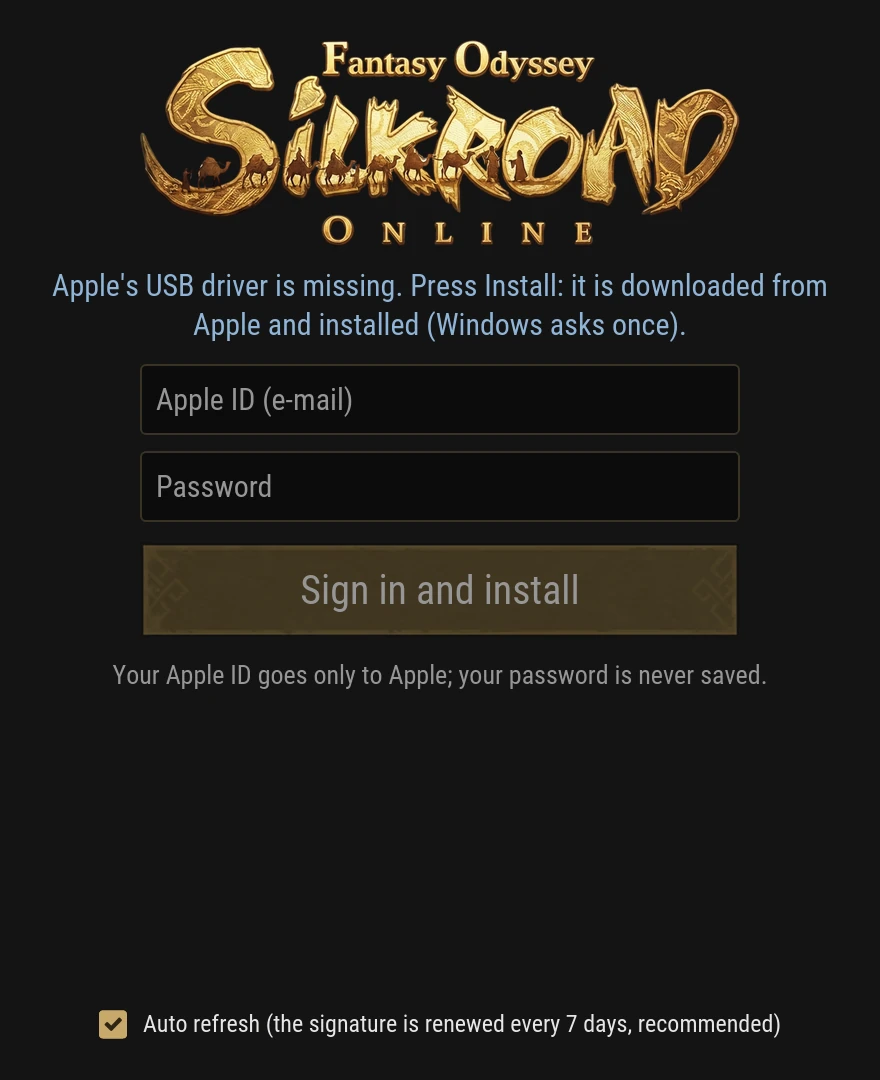
2. Connect the device with a cable
Plug the iPhone or iPad into the computer with a USB cable and unlock it. If the driver is installed, the phone asks "Trust This Computer?" right away: tap "Trust" and enter its passcode. Once you confirm, the top of the window says "Ready: iPhone". Without the driver, this question comes in step 3, after the driver is installed.
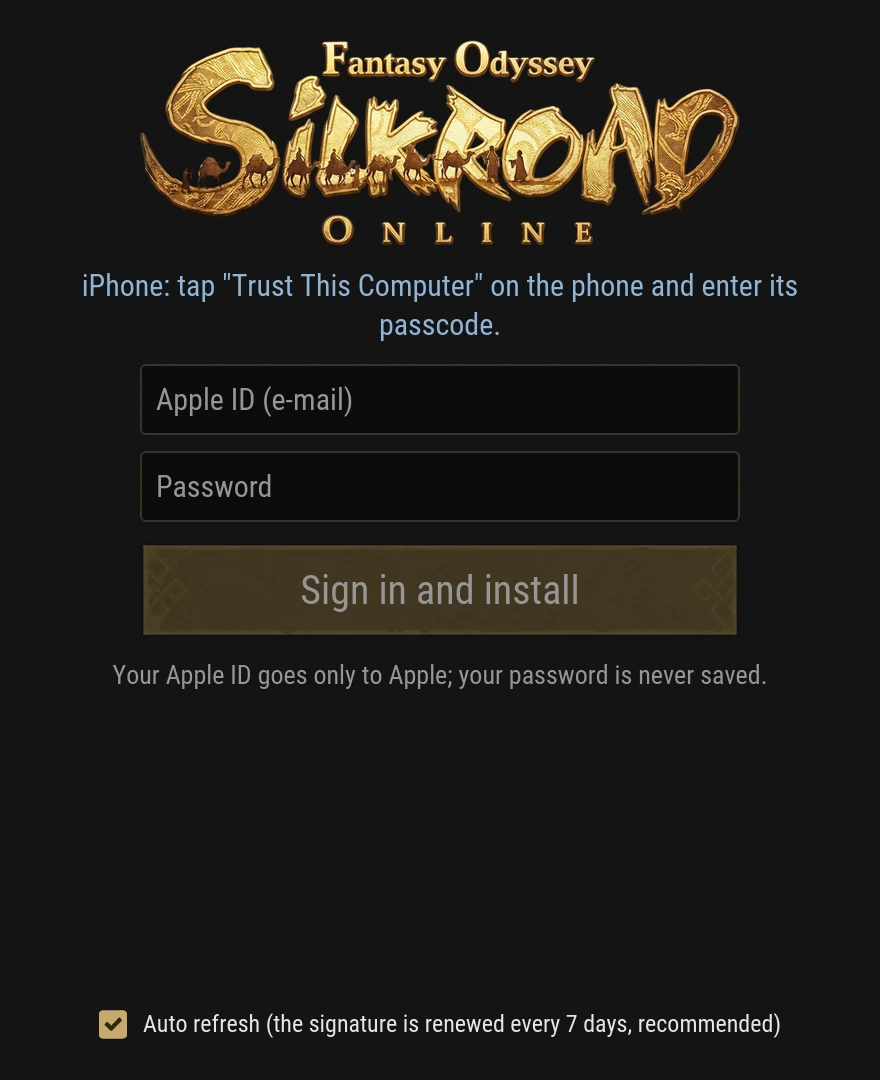
3. Sign in with your Apple ID
Enter your Apple ID (e-mail) and password and press "Sign in and install". Your details go only to Apple; your password is never saved.
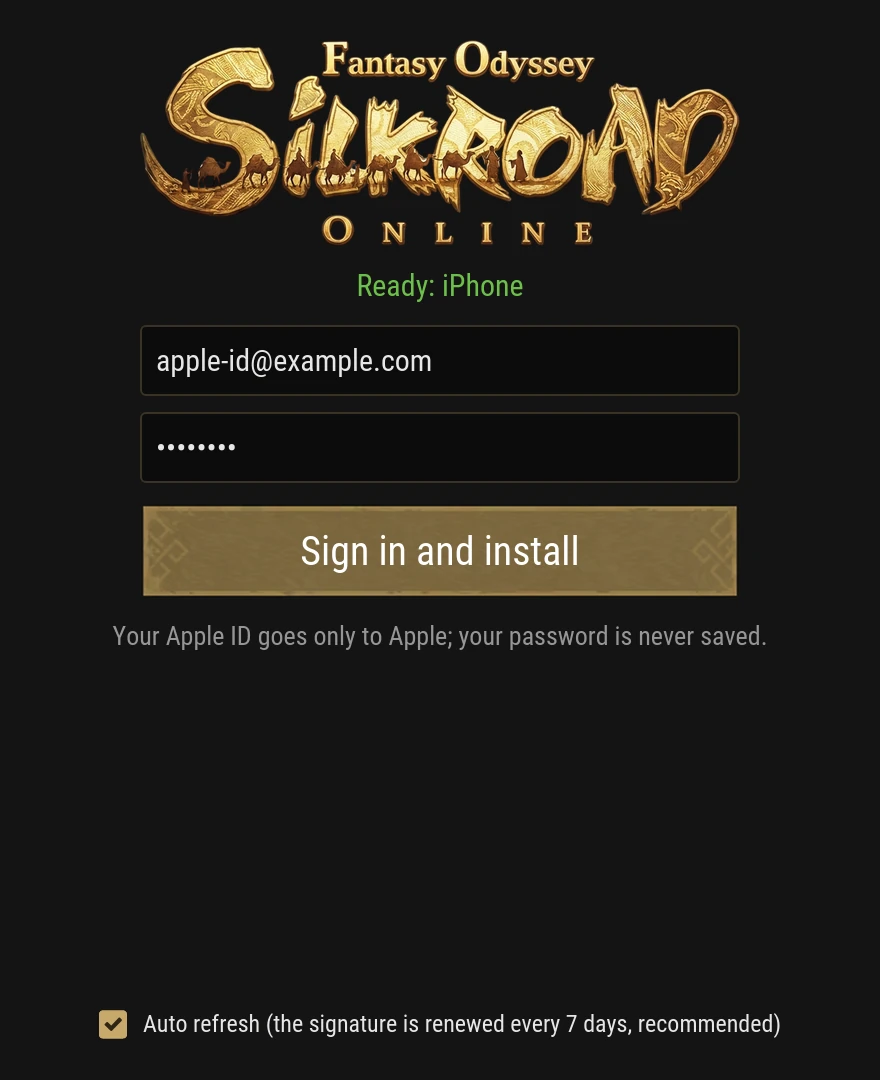
If the driver is missing, it is installed first: Windows asks for permission once, say "Yes". Then the phone asks "Trust This Computer?": tap "Trust" and enter its passcode; the installer waits meanwhile.
Apple sends a 6-digit verification code to an iPhone, iPad or Mac signed in with the same Apple ID (if a sign-in request appears first, tap "Allow"). Type the code and press "Verify". If no code comes, press "No code? Send it by SMS".
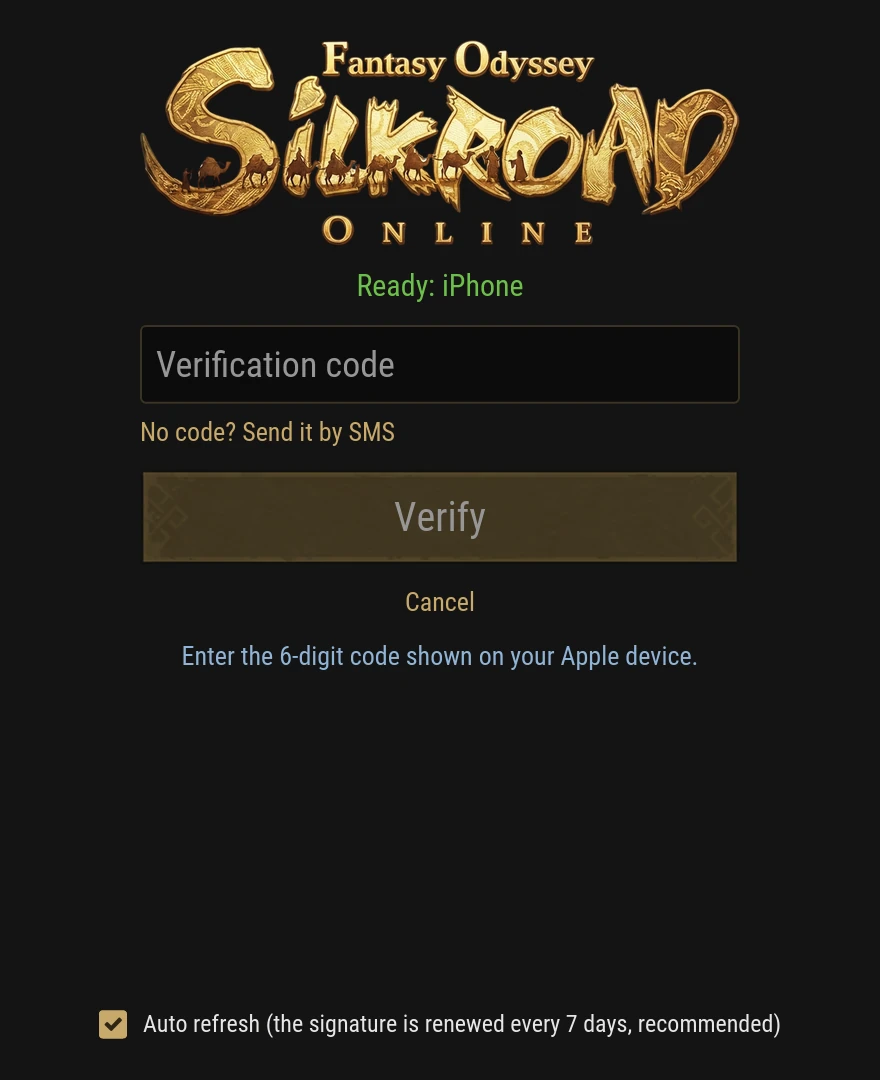
4. The installer does the rest
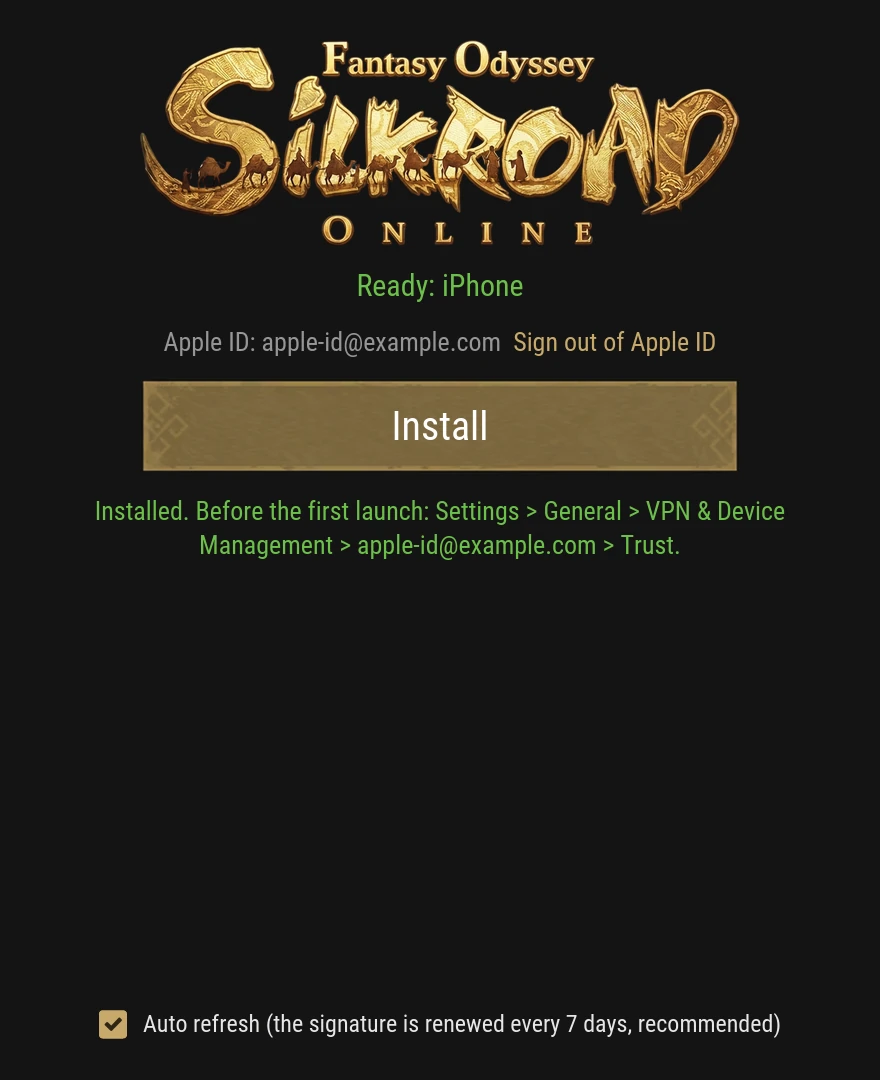
The game is downloaded, checked, signed with your Apple ID and installed on the phone. Watch the progress bar and don't unplug the cable meanwhile. When it is done, the window shows a green "Installed".
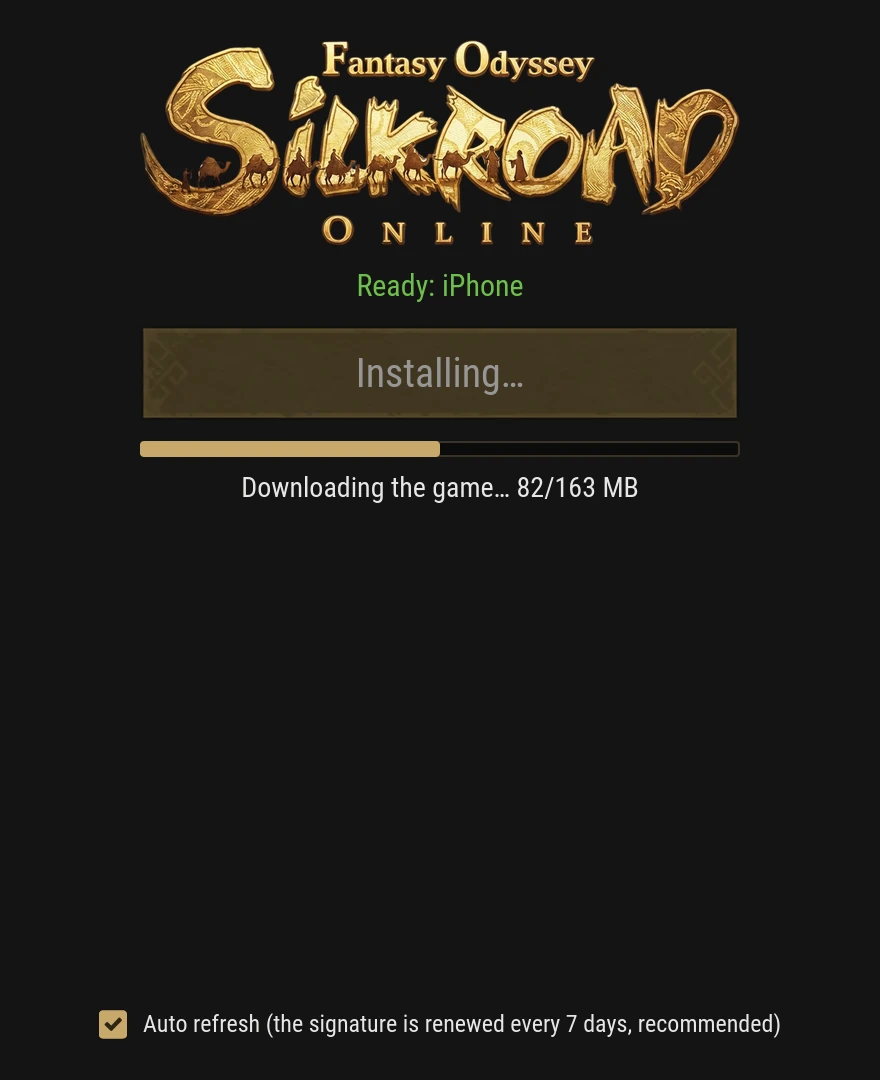
5. First launch on the phone
On iOS 16 and later, turn on Developer Mode (once per phone). The option appears in the list after the first installation. The phone restarts; when it is back, tap "Turn On" and enter your passcode.
- Settings
- Privacy & Security
- Developer Mode
If the first launch shows "Untrusted Developer", trust your Apple ID:
- Settings
- General
- VPN & Device Management
- your Apple ID
- Trust
Then open the game and sign in with your Legend Of Silkroad account.
The signature is renewed every 7 days
A signature made with a free Apple ID lasts 7 days. While "Auto refresh" is ticked (recommended), the installer stays in the system tray next to the clock and renews the signature before it runs out. For that, keep the computer on and the phone on USB or on the same Wi-Fi as the computer.
- Right-click the tray icon to see the days left and "Refresh now", "Turn off auto refresh", "Open" and "Exit".
- If Apple wants a new sign-in, a notification appears: open the installer and press "Install".
- If a renewal is missed, the game won't open but is not deleted: connect the phone, open the installer and press "Install".
With a free Apple ID, at most 3 apps installed this way can be on the phone at the same time, and at most 10 app IDs can be created in 7 days.
Troubleshooting
The window says "No iPhone found"
Unlock the phone, use a cable that carries data and try another USB port. If Apple's USB driver can't be installed, install "Apple Devices" from the Microsoft Store and open the installer again.
No "Trust" question appeared, or I tapped "Don't Trust"
Unplug the cable, plug it in again and unlock the phone; the question comes back.
It says "The Apple ID or password is incorrect"
Check your Apple ID and password by signing in on an Apple device or on Apple's account page. If you changed this Apple ID's password recently, enter the new one.
It says "Apple sign-in failed" with a code (e.g. -22410)
You may be using an old installer. Choose "Exit" on the tray icon, download the installer again from this page and try again. If the error stays, wait a while and retry; if it still fails, send us the code.
It says "The Apple connection could not be prepared"
Check your internet connection and try again. The installer fetches the connection data Apple's sign-in needs over the internet; if that can't be fetched for a while, try again in a few minutes.
The verification code doesn't arrive
The code goes to an iPhone, iPad or Mac signed in with the same Apple ID; if a sign-in request appears first, tap "Allow". Without an Apple device, press "No code? Send it by SMS".
I'm asked to accept Apple's developer agreement
Use the installer's "Open the agreement page" link to sign in at developer.apple.com with the same Apple ID, accept the agreement shown, then press "Install" again.
The game won't open or says "Untrusted Developer"
On the first launch, trust your Apple ID under Settings › General › VPN & Device Management. If 7 days have passed, the signature has run out: connect the phone, open the installer and press "Install".
What do I do after an iOS update or a new game version?
Connect the phone, open the installer and press "Install" again. With auto refresh on, the installer also does this by itself.